实践范例:设置页
设置页就是许多小的持久化偏好并排摆在一起。每个偏好都是它自己的一次 UsePersisted 调用、
有它自己的键 —— 并不存在一个中心化的设置对象,因而某个偏好搬家时也不需要迁移。
行的布局由单个辅助方法负责。
原语
| 关注点 | API |
|---|---|
| 逐项偏好存储 | UsePersisted<T>(key, initial, scope) |
| 作用域 | PersistedScope.Window / Application |
| 开关 | ToggleSwitch(isOn, setOn) |
| 选择 | ComboBox(items, index, setIndex) |
| 范围 | Slider(value, min, max, setValue) |
| 行布局辅助方法 | static Element SettingsRow(...) |
持久化状态
// Each preference is a separate UsePersisted call with its own key.
// The window scope ties the values to the host's lifetime; flip to
// PersistedScope.Application when the prefs should survive across
// windows.
var (notify, setNotify) = UsePersisted("prefs/notify", true,
    PersistedScope.Window);
var (theme, setTheme) = UsePersisted("prefs/theme", 0,
    PersistedScope.Window);
var (volume, setVolume) = UsePersisted("prefs/volume", 60.0,
    PersistedScope.Window);
三个偏好,三个键。每个偏好独立持久化,因此新增第四个只需在 Render() 中加一行
再配一个对应的控件。PersistedScope.Window 作用域把值保留在
宿主窗口之内 —— 对于进程级偏好(认证、区域设置、主题),请按
持久化 页的说明改用 PersistedScope.Application。
渲染
return VStack(16,
    Heading("Settings"),
    SettingsRow("Notifications",
        ToggleSwitch(notify, setNotify)),
    SettingsRow("Theme",
        ComboBox(["System", "Light", "Dark"], theme, setTheme)),
    SettingsRow("Volume",
        Slider(volume, 0, 100, setVolume).Width(200))
).Padding(20);
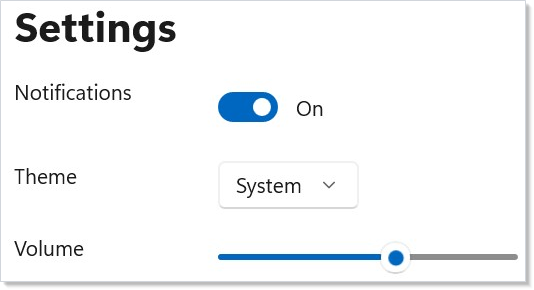
一个由 SettingsRow 组成的 VStack;每行是一个标签 + 一个控件。页面
因 Hook 状态变化而重渲染,协调器则就地修补既有的控件 ——
切换通知开关时,滑块不会重新挂载。
行辅助方法
// A `SettingsRow` is a label + control — two slots in an HStack with a
// fixed-width label so the controls line up across rows.
private static Element SettingsRow(string label, Element control) =>
    HStack(16,
        TextBlock(label).Width(120),
        control.AutomationName(label)
    );
固定宽度的标签让各行控件对齐,控件则获得与标签相同的文本作为其自动化名称。
该辅助方法是私有的静态方法,而不是 Component —— 它没有状态,
因此「返回 Element 的函数」才是正确的形态。
提示
每个偏好用一个键,而不是一整个大记录。 单键做法免去了「新增一个偏好」这种常见情形下的
带版本的结构迁移。如果两个偏好确实
相关(例如 theme + accentColor),就把它们放在同一条记录里;
否则让它们各自独立。
这里不要动用 UseReducer。 Redux 风格的 reducer 适合带有
跨字段不变式的状态;设置页恰恰相反 —— 每个偏好都是独立的。
只有当偏好需要比窗口活得更久时,才提升到 Application 作用域。
窗口作用域是更安全的默认值;一个跨窗口共享的 Application 作用域
键是个协调问题,持久化 页对此有详细说明。